




I’ve been using Visual Studio Code since my university days. At the time, I had access to a JetBrains license through a student program, but I didn’t fully understand the differences between the two. As a result, I used IntelliJ only to learn Java, while relying on Visual Studio Code for most of my development work.
After joining PALO IT, I had the opportunity to work on a project involving multiple languages such as TypeScript, Python, and Go. I was again provided with a JetBrains license, and this time, I decided to make full use of the JetBrains ecosystem. Having spent time using both tools in a real-world setting, I’d like to share my thoughts and compare IntelliJ and Visual Studio Code based on that experience.
Language support
🔧 Visual Studio Code
Visual Studio Code is a lightweight, extension-driven tool that supports multiple languages through the marketplace. You can easily switch between JavaScript and TypeScript for frontend work or Python and Go for backend development just by installing the relevant language support extensions. But it requires manual setup.
For example, working with Python typically involves
- Installing the Python extension
- Creating a virtual environment
- Installing necessary packages
- Manually selecting a kernel when using
.ipynbnotebook files.
🧠 JetBrains IDEs
If you open a Python project in PyCharm, which is part of the JetBrains IDE suite are language-specific and come with built-in, pre-configured features. When you open a Python project, the IDE will
- Automatically detect the environment
- Configure the interpreter
- Offer built-in support for
- Linters
- Virtual environments
- Test runners
Below is a list of JetBrains IDEs.
| JetBrains IDE | Primary Supported Languages |
| IntelliJ IDEA | Java Kotlin Groovy Scala JavaScript SQL |
| PyCharm | Python JavaScript SQL HTML, CSS |
| WebStorm | JavaScript TypeScript HTML, CSS Node.js |
| PhpStorm | PHP JavaScript HTML, CSS SQL |
| RubyMine | Ruby JavaScript HTML, CSS SQL |
| CLion | C, C++ Rust, Python (limited) Swift (limited) |
| GoLand | Go |
| DataGrip | SQL, PL/SQL T-SQL and other database languages |
| Rider | C#, F# VB.NET, ASP.NET Unity |
| AppCode | Objective-C, Swift C, C++ (for iOS/macOS development) |
📚 Summary
Visual Studio Code gives you flexibility and extensibility, but requires effort to configure language environments. While JetBrains IDEs come with built-in, language-specific configurations. You may need to install multiple JetBrains IDEs if you’re working across different languages, which results in greater use of disk space and system resources.
🏆Winner: JetBrains IDEs
I like how it automatically sets up project configurations. And I don’t mind installing multiple JetBrains IDEs for different languages, modern laptops have more than enough disk space to handle.
🧠 Comparison
| Feature | Visual Studio Code | JetBrains IDEs |
|---|---|---|
| Language Support | Supports many languages via extensions (e.g., Python, Go, JavaScript) | Each IDE is tailored for specific languages integrated |
| Setup Effort | Requires manual setup (e.g., install extension, configure interpreter, create venv) | Automatically detects environments, installs dependencies, and configures tools |
| Out-of-the-box Experience | Depends on extensions | Rich built-in support for target language (e.g., linters, test runners, virtual environments) |
| Multi-language Projects | Easily supported in one editor | Requires multiple IDEs for best experience across different languages |
| System Resource Usage | Lightweight and low resource consumption | Heavier, especially when using multiple IDEs |
| Customization | Highly customizable through marketplace extensions | Limited customization; focused on stability and integrated tooling |
Plugin Ecosystem
🔧 Visual Studio Code
Visual Studio Code supports a wide range of extensions that allows developers to customize and enhance their environment based on project needs and personal preferences. You can easily add support for
- Languages like Python, Go, or Rust
- Testing frameworks such as Jest, Mocha, or Pytest
- Containerization tools (e.g., Docker)
- Code formatting and linting tools like Prettier and ESLint
- Utility extensions for
- Spell checking
- Icon customization
- Theming
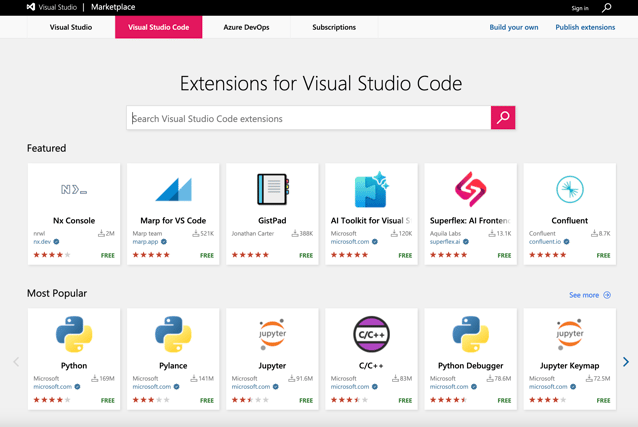
Since AI integration has become a key part of modern development workflows, VS Code also shines in AI integration
- Full support for GitHub Copilot, offering:
- Real-time code completions
- Context-aware suggestions
- AI chat assistance for debugging or writing tests
This and similar extensions can be easily discovered and installed through the Visual Studio Code Marketplace.
🧠 JetBrains IDEs
JetBrains IDEs also support a wide range of plugins via the JetBrains Marketplace, but the experience is different
- Most core features (language support, testing tools, version control, database access, etc.) come prebuilt into the IDE.
- This reduces the need to search for and manage extensions.
- AI integration (e.g., GitHub Copilot) is still catching up:
- Copilot’s Agent Mode is in beta for JetBrains IDEs and lacks parity with VS Code.
- This is likely due to VSCode and Copilot both being developed by Microsoft. VsCode is a clear winner in this regard.
🧩 Comparison
| Feature | Visual Studio Code | JetBrains IDEs |
|---|---|---|
| Plugin Availability | Extensive extension marketplace covering languages, tools, UI, AI, etc. | Plugin marketplace available, but less necessary due to built-in features |
| Setup Approach | Requires plugins for core features (e.g., language support, testing, linting, containers) | Most core features (language support, testing, VCS, database tools) included out of the box |
| Customization | Highly customizable – themes, icons, linters, spell checkers, etc. | Limited customization focus prioritizes integrated experience |
| AI Integration | Full GitHub Copilot support | Supports GitHub Copilot, but some features may lag behind VS Code version (e.g., Copilot Agent in beta) |
| Ease of Plugin Management | Easy to browse, install, and manage from Visual Studio Code Marketplace | Plugins available via JetBrains Marketplace, but often not required for daily workflow |
📚 Summary
In summary, Visual Studio Code offers you a highly customizable experience, allowing developers to customize their environment with a wide range of plugins from the marketplace. On the other hand, JetBrains IDEs provide many built-in features, resulting in less setup.
🏆 Winner: Visual Studio Code
I enjoy customizing my Visual Studio Code —whether it’s installing extensions to boost productivity or tweaking the UI with themes and icons.
Version Control Integration
🔧 Visual Studio Code
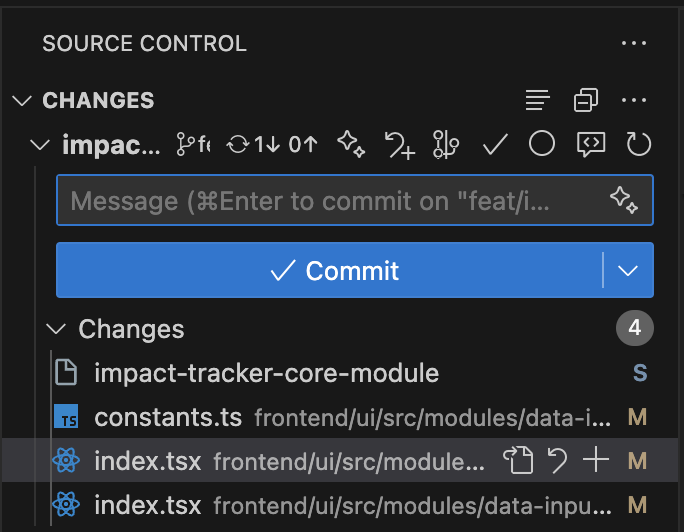
Visual Studio Code provides built-in Git integration through the Source Control panel, which allows you to
- View file changes
- Commit and sync with remote repositories
- Resolve merge conflicts
- The experience can be extended with powerful extensions such as
- GitLens: Adds features like pull request creation and AI-assisted commit message generation.
- Git Graph: Visualizes local and remote branches with an interactive graph view.
🧠 JetBrains IDEs
JetBrains IDEs include built-in Git support, along with a well-designed and user-friendly interface. They offer nearly every Git operation you would expect and also feature an integrated Git log viewer and branch management panel, making it easy to explore commit history and manage branches.
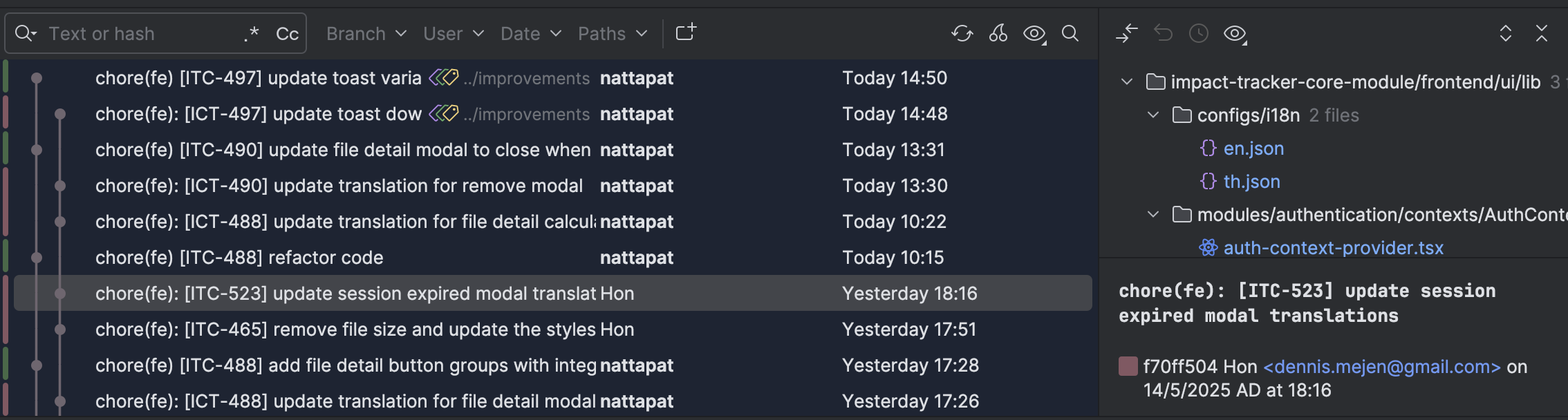
JetBrains IDEs also come up with advance feature such as
- Multiple changelists: Group changes within the same file into separate lists. Useful for selectively committing changes.
- Shelve: A more refined version of Git stash. Allows selective shelving of changes based on changelists rather than stashing everything.
🧩 Comparison
| Feature | Visual Studio Code | JetBrains IDEs |
|---|---|---|
| Git Integration | Built-in Git support via the Source Control panel | Fully integrated Git support with a well designed UI |
| Advanced Features | Requires extensions like GitLens (blame annotations, PR creation, AI commit suggestions) | Built-in tools like Git log viewer, branch manager, and commit history |
| UI/UX | Functional but minimal | Intuitive, feature-rich interface with visual tools |
| Branch Visualization | Available via extensions like Git Graph | Included by default with branch diagrams and commit |
📚 Summary
- Visual Studio Code offers a modular and extensible Git experience, ideal for those who enjoy tailoring their workflow.
- JetBrains IDEs provide a fully integrated version control suite, without needing extra plugins.
Both tools support Git workflows effectively—it comes down to whether you prefer a modular setup or more integrated experience.
Feature
🏆 Winner: JetBrains IDEs
It comes with a well designed UI experience and full support for every Git operation which makes me rarely use the command line.
Collaboration Tooling
🔧 Visual Studio Code
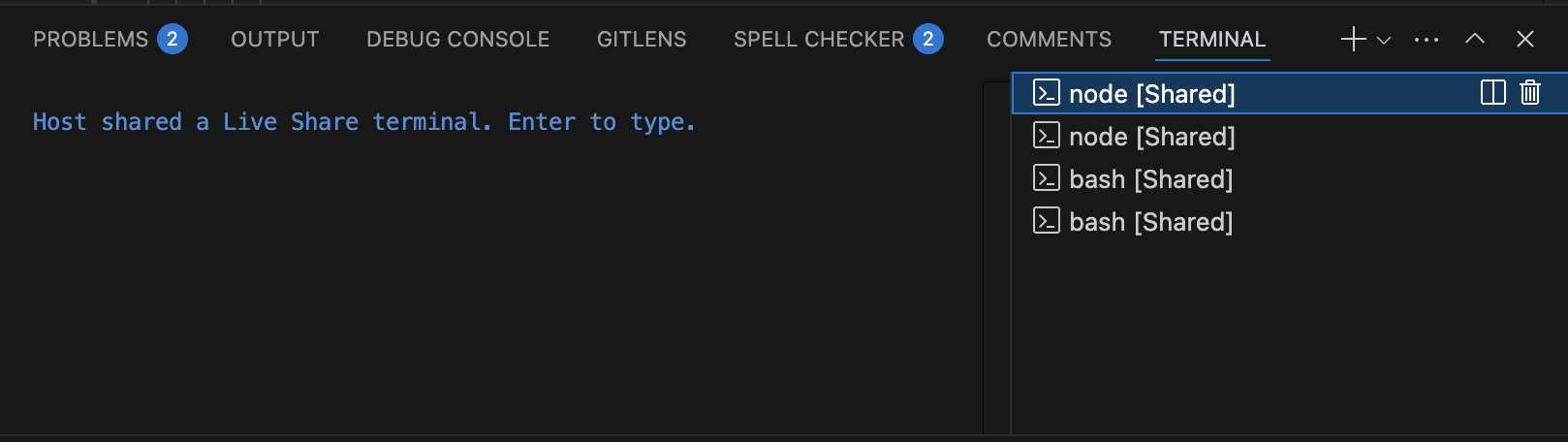
Visual Studio Code enables real-time collaboration through its Live Share extension and
- Allows you to share your project by generating a session URL.
- Maintains your personal editor settings while working with teammates.
- Supports more than just code editing
- Shared debugging sessions
- Shared terminal
- Shared server
- Each participant gets their own cursor, making it easy to follow others or navigate independently.
🧠 JetBrains IDEs
JetBrain’s Code With Me, built into JetBrains IDEs, provides a similar collaboration experience
- Supports collaborative editing, shared terminals, debugging, and even voice chat
- Retains individual IDE settings such as keybindings
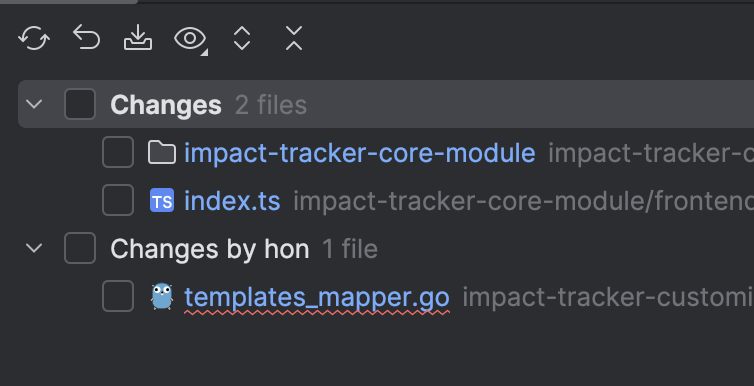
- Offers a separate changelist for each user
- Helps users distinguish between their own edits and others
- Reduces confusion and minimizes the risk of overwriting others' code
🧩 Comparison
| Feature | Visual Studio Code (Live Share) | JetBrains (Code With Me) |
|---|---|---|
| Setup | Requires installing Live Share extension | Built-in to JetBrains IDEs |
| Real-time Collaboration | Yes | Yes |
| Shared Terminal | Yes | Yes |
| Shared Debugging | Yes | Yes |
| Editor Preferences | Each user keeps their own settings | Each user keeps their own settings |
| Change Separation | Shared editing workspace with no changelist separation, may lead to merge confusion | Supports multiple changelists per user, reducing merge conflicts |
| Ease of Use | Easy to start via shared link | Integrated into JetBrains IDE |
📚 Summary
Both, Visual Studio Code Live Share and JetBrains Code With Me, are effective real-time collaboration tools that let developers pair program without cloning the repository or setting up the project locally.
Visual Studio Code uses a shared editing workspace without separate changelists which can lead to confusion or accidental overwrites when multiple users edit the same file simultaneously. JetBrains, on the other hand, separates changes by user, reducing merge conflicts and making collaboration clearer.
🏆 Winner: Tie
There’s no clear winner in this section for me—both tools perform well in terms of real-time collaboration. It depends on personal or team preferences.
Debugging & Testing Tools
🔧 Visual Studio Code
Visual Studio Code offers built-in debugging capabilities with strong extension support, but setup can be more manual and dependent on language-specific tools.
- Provides a customizable debug panel where you can
- Set breakpoints
- Inspect variables
- Step through code
- Evaluate expressions
- Native support for JavaScript, TypeScript, and Node.js
- For other languages or complex debugging scenarios, you need to
- Install appropriate extensions
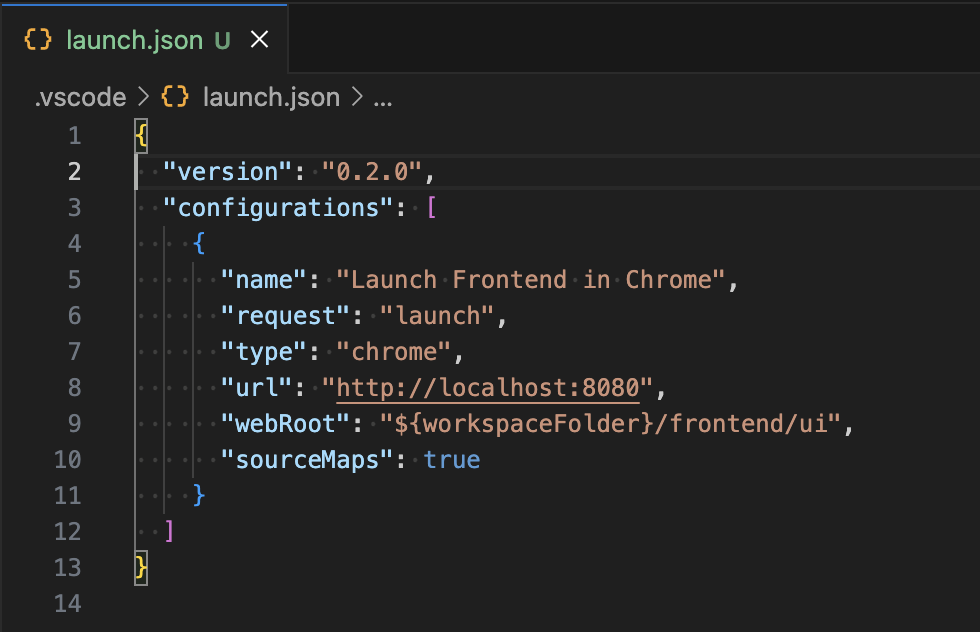
- Create a
launch.jsonfile to configure the debugger
Testing also requires manual setup—such as installing the Jest extension for JavaScript or configuring Pytest for Python. GitHub Copilot can help generate test cases and suggest fixes for failing tests.
🧠 JetBrains IDEs
JetBrains IDEs provide powerful debugging tools based on the user’s run configurations. The configurations or templates of well known testing frameworks such as JUnit can be created for different environments to run the same use case. Starting a debugging session using the Debug button is as simple as running the application using the Run button - the same run configuration is used.
Key debugging features include
- Setting breakpoints
- Ability to choose which function to step into when multiple functions are on the same line
- Option to label objects to track property changes and monitor object behavior throughout the session
This is extremely useful when dealing with complex data structures or multiple concurrent or reactive calls.
🧩 Comparison
| Feature | Visual Studio Code | JetBrains IDEs |
|---|---|---|
| Setup | Manual setup (e.g., launch.json, config files) | Auto-detects frameworks with built-in test runners |
| Test Runner UI | Depends on extensions | include interface for test results |
| Test Coverage | Needs additional setup (e.g., Istanbul, coverage libs) | Built-in support with UI overlays |
📚 Summary
Both, Visual Studio Code and JetBrains, already offer the fundamental features of a debugging tool, only taking different approaches.
- Visual Studio Code is focusing on simplicity and flexibility—more languages can be added to the tools using extensions.
- JetBrains has an edge in this category—we can run a debug configuration using the built-in template that comes with the IDE
🏆 Winner: JetBrains IDEs
I give the win to JetBrains because it offers integrated debugging tools that work out of the box. And it comes up with the same Run configuration, but it still need to modify configuration for first test run.
Refactoring & Code Intelligence
🔧 Visual Studio Code
Visual Studio Code offers basic refactoring and code intelligence capabilities through its built-in tools and language-specific extensions. Common refactoring operations include
- Rename symbol
- Extract variable
- Extract method
- Move to file
- Find all implementation
- Quick fixes
VS Code's IntelliSense provides
- Context-aware autocomplete
- Parameter hints
The depth and reliability of these tools often depend on the language server behind the scenes. And it can be extended to support more advanced tooling.
🧠 JetBrains IDEs
JetBrains support complex refactoring like
- Safe rename across the entire project
- Inline/invert functions
- Extract interface or superclass
- Change method signature with awareness of code dependencies and usages.
JetBrains also provide code suggestion features including type inference, redundant code detection, and quick-fix intentions.
🧩 Comparison
| Feature | Visual Studio Code | JetBrains IDEs |
|---|---|---|
| Basic Refactorings | Rename Symbol | |
| Extract Variable/Method | ||
| Move to File (depends on language server) | Rename across files | |
| Extract Variable/Method | ||
| Move/Inline/Invert functions | ||
| Code Intelligence | IntelliSense (autocomplete, parameter hints, quick-fix) | Deep type-aware suggestions Quick-fix intentions |
📚 Summary
Visual Studio Code provides refactoring tools and IntelliSense-based suggestions, with feature depth depending on the language server and extensions. JetBrains IDEs offer project-wide refactoring with awareness of code dependencies, enhanced by intelligent suggestions, type inference, and quick-fix intentions.
🏆 Winner: JetBrains IDEs
JetBrains provides comprehensive refactoring tools with awareness of code dependencies and usage, eliminating the need for manual adjustments. Personally, it really convenient for me—I can refactor with confidence, because the IDE will automatically update everything for me.
Summary
In conclusion, both tools offer great development experiences. Visual Studio Code is lightweight and highly customizable, supporting a wide range of languages through extensions—but it often requires manual setup. JetBrains IDEs provide rich, built-in features with deep language integration. Although, they require more system resources and there is no unified IDE for all languages as is the case with Visual Studio Code.
Pros / Cons
✅ Visual Studio Code
- Lightweight and fast
- Highly customizable via extensions
- Supports many languages in a single IDE
- Great flexibility for different workflows
❌ Visual Studio Code
- Requires manual setup for language environments
- Feature reliability depends on installed extensions
✅ JetBrains IDEs
- Built-in features out of the box
- Deep language-specific integration
- Minimal manual setup required
❌ JetBrains IDEs
- Higher system resource usage
- Requires separate IDEs for different languages
- Less customizable than VS Code
Looking for a professional team to develop software or applications for your organization? At PALO IT, our team of software and application development experts is ready to support you every step of the way—from concept to fully operational solutions!
Our services cover:
- Custom Software Development tailored to your unique business needs
- Application Development designed to fit every aspect of your organization’s requirements
- System Optimization & Maintenance to ensure high performance and scalability as your business grows
- Professional Testing & Evaluation to guarantee your systems are practical, effective, and ready for real-world use
Whether you have a new idea or want to enhance your existing systems, PALO IT is your trusted partner to help you move further and faster.
Message us on Facebook: PALO IT Thailand today! 🎉